
Quick Summary
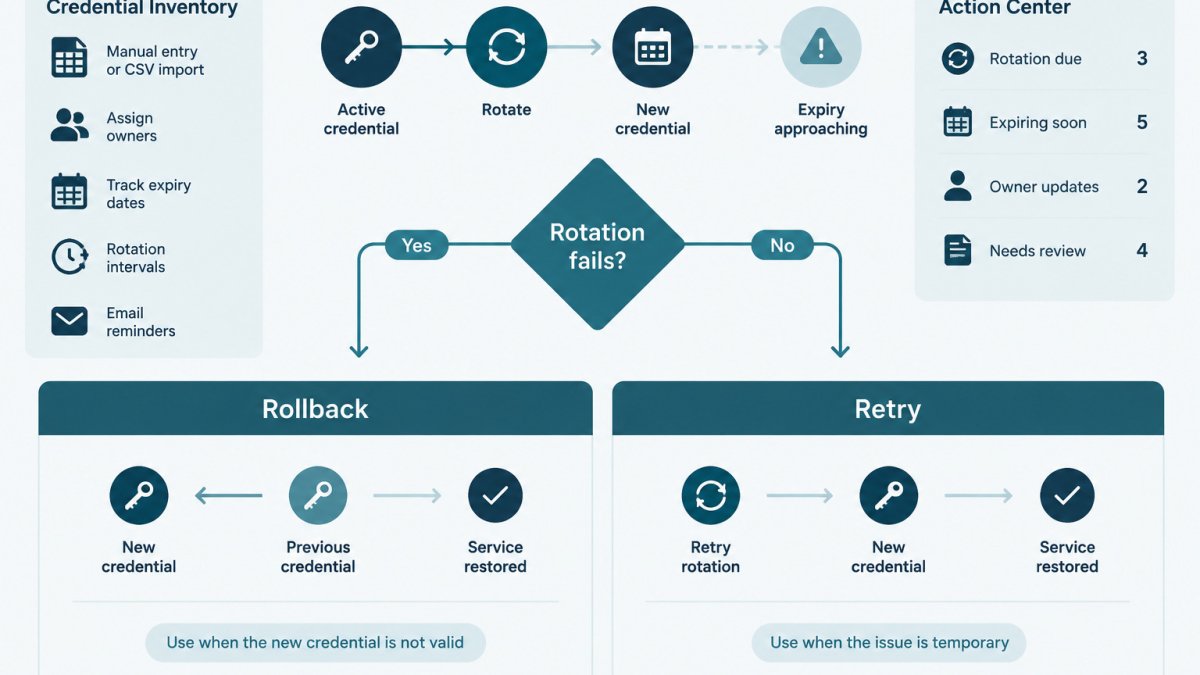
Choose a credential rotation rollback when the old credential is still trusted and the new one is persistently failing, such as being rejected or misconfigured. Choose a retry for transient errors like timeouts or throttling. Never roll back to a credential that may have been exposed; move forward with the new one instead.
- Classify the failure first: is the old credential still trusted, and which rotation stage failed?
- Retry transient errors such as timeouts, throttling or brief network errors, using backoff with jitter.
- Do not retry persistent failures like rejected or permission-denied credentials; fix the cause first.
- Set a retry limit before starting, and stop retrying when the error is unchanged or the RTO is at risk.
- Check for existing credentials before retrying a create step to avoid stray, untracked keys.
Table of Contents
- Why Credential Rotation Fails Partway Through
- Credential Rotation Failure Recovery Checklist
- Rollback or Retry: A Decision Framework
- Retry Limits, Backoff and Idempotency
- Using the Overlap Window to Make Recovery Safe
- Recovery Steps in AWS Secrets Manager Rotation
- Recording the Decision and Next Steps for Your Team
- Frequently Asked Questions
Credential Rotation Rollback vs Retry: A Decision Guide
Last Updated: November 6, 2026
When a credential rotation fails partway through, an operator has two options: retry the failed step or roll back to the previous credential. Choosing wrong can extend an outage or leave an old credential active when it should have been retired.
This guide covers common failure points, a decision framework, retry limits and idempotency, and how an overlap window makes recovery safer. Teams that want a starting point for recording those details can use our free credential inventory template to capture owners, expiry dates and rotation history before an incident happens.
Credential rotation is the process of replacing an existing credential, such as an API key, password or certificate, with a new one. A rollback restores the previous credential. A retry repeats the failed step without changing the credential that was issued.
Why Credential Rotation Fails Partway Through
Rotation is a sequence of steps across several systems. A failure can happen at any point. Common causes include:
- The new credential was created but not written to the secret store
- The application did not reload its configuration
- A downstream consumer still uses the old credential
Each failure point has a different safe response. A failed write to the secret store is usually safe to retry. A failed cutover, where some consumers already use the new credential, needs more care.
If your rotation has already failed, see How to Recover from a Failed Credential Rotation for the recovery steps that apply to that situation.
Credential Rotation Failure Recovery Checklist
Before choosing a recovery path, confirm these facts:
- Which stage failed: create, store, deploy, cutover or verify
- Whether the old credential is still valid at the provider
- Which consumers have already switched to the new credential
Record the answers in your incident notes. They decide the path in the next section.
Rollback or Retry: A Decision Framework
A retry repeats the failed step against the same new credential. A rollback restores the previous credential and abandons the new one for now. The wrong choice either extends an outage or leaves a retired credential live.
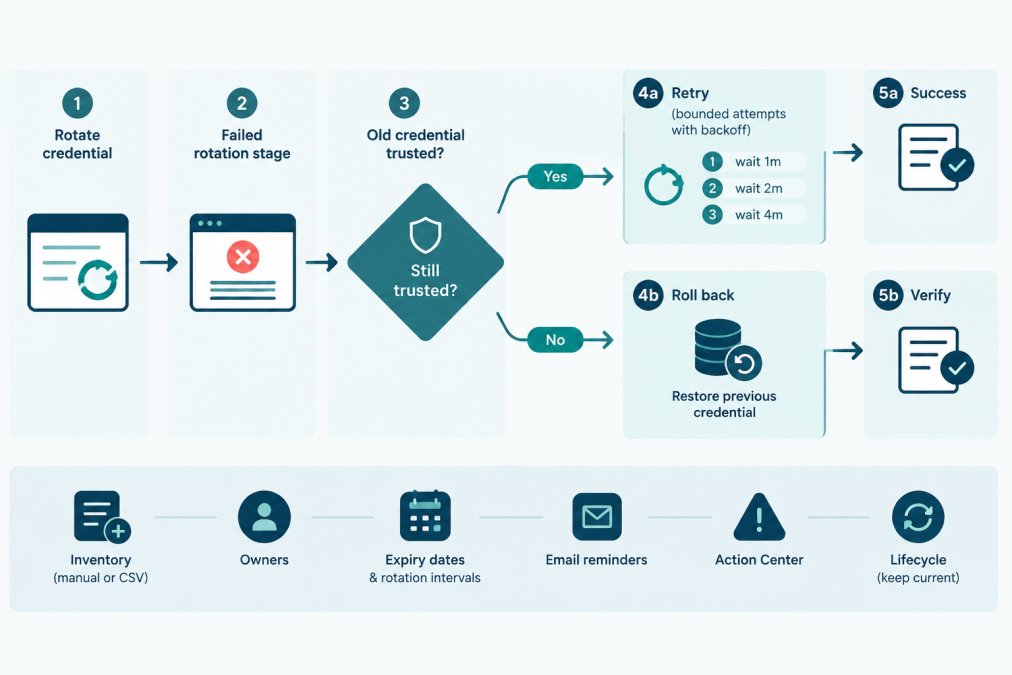
Use the framework below in order. The first condition that matches decides the path.
Step 1: Classify the failure
Answer two questions and write the answers down:
- Is the old credential still trusted? "Trusted" means no reason to believe it was exposed, leaked, or used by an unknown party. If you cannot answer confidently, treat it as untrusted.
- Which rotation stage failed? Create, store, deploy, cutover, or verify. The stage determines what state the system is in.
If the old credential is untrusted, skip to the compromise branch below, do not roll back to it under any circumstances.
Step 2: Apply the decision tree
- Old credential untrusted (suspected exposure or compromise). Do not roll back. Retry forward with the new credential, and revoke the old one at the provider once the new one is confirmed working. "Restore service fast" must lose to "do not re-enable a compromised secret."
- Failure before any consumer switched (create or store stage). The old credential is still the only one in use. Retry with a bounded attempt limit; if retries exhaust, pause and investigate rather than rolling back, there is nothing to roll back to yet.
- Transient failure at any stage (timeout, throttling, rate limit, brief network error). Retry with backoff; transient causes usually clear within a few attempts.
- Persistent failure (new credential rejected, permission denied, format or configuration error). Retrying the same broken input will keep failing. Roll back to the trusted old credential to restore service, fix the root cause, then re-attempt rotation.
- Partial cutover (some consumers on new, some on old). Roll back only the consumers that failed to switch, keep the ones that succeeded if the new credential is confirmed valid, and verify both groups. Rolling back everything is simpler but may cause a second disruption; rolling back nothing leaves inconsistent state.
- Outage cost rising and retries not converging. Roll back to the trusted old credential to restore service, then investigate offline. Continuing to retry a persistent fault in production is delay, not recovery.
Measurable signals that should drive the call
Do not decide on gut feel alone. Track these signals during and after the attempt:
- Authentication error rate for the affected service. A spike after cutover that does not fall within your retry window points to rollback.
- Service health check status per consumer, not just in aggregate.
- Propagation delay, consumers still on the old credential after the expected window signal a partial cutover.
A common hard stop: if the service has been degraded longer than the RTO and the last two retries produced identical errors, roll back. That rule prevents an operator from retrying indefinitely out of optimism.
Stop criteria for each path
- Stop retrying when: the retry limit is reached, the error is unchanged across attempts, the error is clearly persistent (rejected credential), or the RTO is at risk.
- Stop rolling back when: the old credential is untrusted (never roll back), or the rollback itself fails and you must escalate rather than loop.
- Escalate when: you cannot determine whether the old credential is trusted, the rollback fails, or the failure spans multiple services with different owners.
A worked example (fictional)
A team rotates an API key for a billing integration.
- Stage: partial cutover.
- Old credential trusted: yes.
- Signal: authentication error rate at roughly half the fleet, unchanged after two retries.
That is a partial rollback, not a full one. It restores service without discarding a working new credential.
Watch out: rolling back a credential that may have been exposed re-enables the very secret you were trying to retire.
For the recovery steps that apply once you have chosen a path, see How to Recover from a Failed Credential Rotation.
Retry Limits, Backoff and Idempotency
Retries are only safe when they are bounded, spaced out, and repeatable without side effects. Most rotation failures that become incidents are caused not by the first failure but by an unbounded retry loop that keeps creating new credentials or hammering a struggling provider.
Set a retry limit before you start
Decide the maximum number of attempts in advance and write it into the runbook. A common pattern is three attempts total (the initial try plus two retries). Beyond that, the failure is almost always persistent, and more attempts just delay the rollback decision.
- Transient errors (timeouts,
429throttling, brief5xx): three attempts is usually enough. - Persistent errors (
401,403, validation errors, rejected format): do not retry at all. Fix the cause first. Retrying a rejected credential will keep being rejected. - Unknown errors: one retry, then stop and investigate.
Use exponential backoff with jitter
Waiting longer between attempts reduces load on a provider that may already be struggling, and jitter (a small random variation) prevents many workers from retrying in lockstep.
A practical schedule for a rotation script:
- Attempt 1: immediate.
- Attempt 2: wait about 5 seconds, plus a small random jitter.
- Attempt 3: wait about 15 seconds, plus jitter.
Cap the total wait so a retry loop cannot run for longer than your recovery time objective allows. If the schedule would exceed the RTO, stop and roll back instead.
Idempotency: the part most teams get wrong
An operation is idempotent if running it twice produces the same end state as running it once. Rotation steps are often not idempotent by default:
- Creating a credential is usually not idempotent. Retrying a create call can leave two live credentials, the one you meant to use and a stray one nobody is tracking. That stray credential is valid, may not be in your inventory, and may never be revoked.
- Writing to a secret store may or may not be idempotent depending on the tool. A write that times out may have partially succeeded; check the stored value before retrying.
- Updating an application config is usually idempotent if you set an absolute value, but not if you append or increment.
Before retrying any step, ask: if this runs twice, what extra state does it leave behind? If the answer is "a second credential" or "a duplicate record," make the step idempotent first, for example, check for an existing pending credential before creating a new one, or use a client-supplied idempotency key if the provider supports one.
Safeguards against duplicate and stray credentials
- Check before create. Before retrying a create step, list existing credentials for that service and confirm whether the previous attempt actually succeeded.
- Tag or label new credentials with the rotation run ID so a stray one is identifiable later.
- Record every attempt, timestamp, step, result, and any credential identifier created, in your rotation log. Without that record, a later reviewer cannot tell whether a partial write left a stray credential behind.
Watch out: retrying a create step without checking first is the most common way teams end up with an extra live API key that nobody owns and nobody rotates.
Logging without leaking secrets
Log the attempt number, step name, error code, and credential identifier, never the credential value itself. Rotation logs are often retained longer and shared more widely than the secrets they describe, so a secret written into a log line is effectively a second exposure. If your tooling logs request bodies by default, confirm credential fields are redacted before relying on those logs for debugging.
When to stop retrying and switch to rollback
Stop retrying and move to the rollback decision when any of these is true:
- The retry limit is reached.
- The error is identical across attempts.
- The error is clearly persistent (rejected credential, permission denied).
At that point, return to the decision framework above and choose rollback or forward-fix based on whether the old credential is still trusted.
Using the Overlap Window to Make Recovery Safe
An overlap window is a period when both the old and new credentials are valid. It gives consumers time to switch and gives you a fallback if the new credential fails.
To use it well:
- Keep the old credential valid for a defined period after the new one is deployed.
- Watch error rates and health checks during that period.
- If errors rise, roll back to the old credential while it is still valid.
- Once every consumer runs on the new credential and checks pass, revoke the old one in the provider.
The overlap window is only a safety net while the old credential is trusted. If exposure is suspected, shorten or skip the window and revoke the old credential.
Recovery Steps in AWS Secrets Manager Rotation
AWS Secrets Manager supports rotation for many secret types through a rotation function. The general recovery steps are:
- Check the secret's rotation status and the rotation function's logs in Amazon CloudWatch.
- Identify the failed stage. Secrets Manager uses staging labels such as
AWSCURRENT,AWSPENDINGandAWSPREVIOUSto track versions. - If the new version is not yet promoted, the current version is still in use. Fix the cause and retry the rotation.
- If the new version is promoted but consumers fail, restore the previous version by moving the staging label back, then verify consumers reload.
- Confirm the outcome in your inventory record and close the incident.
Check the current AWS documentation before relying on specific label behavior, because rotation details can change. For the official reference, see the AWS Secrets Manager rotation documentation (aws.amazon.com).
Recording the Decision and Next Steps for Your Team
Every recovery decision should leave a record: the failed stage, the path chosen (retry or rollback), the reason, who approved it and when it completed. Tracking owners, expiry dates and rotation history in one place, such as in KeyGuardRail's credential lifecycle monitoring, makes that record easier to keep current, though the rotation itself still happens in your existing vault or provider.
Afterward, update the credential's owner, expiry date and last rotation date in your inventory. A repeatable review of these records is covered in How to Run API Key Access Reviews for Compliance.
Credential rotation failures are routine, and a clear decision path keeps them from becoming outages.
Whichever path you choose, the article's guidance points to a few facts worth recording for the next review.
| Item | What to record | Why |
|---|---|---|
| Failed stage | Create, store, deploy, cutover or verify | Shows what state the system was in |
| Path chosen | Retry or rollback | Shows the decision made |
| Reason | Why that path was picked | Helps the next person handle a similar failure |
| Approver and time | Who approved it and when it completed | Supports later reviews |
Frequently Asked Questions
Is password rotation still recommended?
Guidance has shifted. Many current recommendations favor rotating a credential when there is evidence of exposure, a change in ownership, or a defined expiry, rather than on a fixed calendar alone. For service credentials such as API keys, a scheduled rotation interval is still common because it limits how long a leaked value stays useful. Check the current guidance from your identity provider or security standard, and record the interval and reason for each credential in your inventory so the schedule is explicit and reviewable.
What is the difference between retrying and rolling back a credential rotation?
Retrying repeats the failed step, such as issuing the new credential or updating a consumer, in the hope that a transient problem clears. Rolling back restores the previous credential as the active one and removes the partially applied change. Retry fits short-lived, idempotent failures where the old credential is still trusted. Rollback fits cases where retries keep failing, the new credential is misconfigured, or the old credential must stay in service until the new one is verified.
How do you verify that a rotated credential is working?
Run a read-only authenticated call from each consumer with the new credential and confirm a successful response, then check that the consumer is actually using the new value rather than a cached old one. Watch error rates for a defined period after cutover. Record the check, the time and the person who ran it. The exact checks depend on your services, so define them per credential before the rotation starts.
How should teams document a credential rotation failure?
Record the credential name and owner, the stage where the failure occurred, the decision taken (retry or rollback), the number of attempts, the verification result and the final state of the old and new credentials. Note whether the old credential was revoked, retained or left active. Store the record in your audit history so the next person can see what happened without reconstructing it from chat logs.
